
1What they are
Forms let you collect answers from members: opinions, informal votes, event sign-ups or feedback. People answer right inside Telegram, with no external forms or spreadsheets.
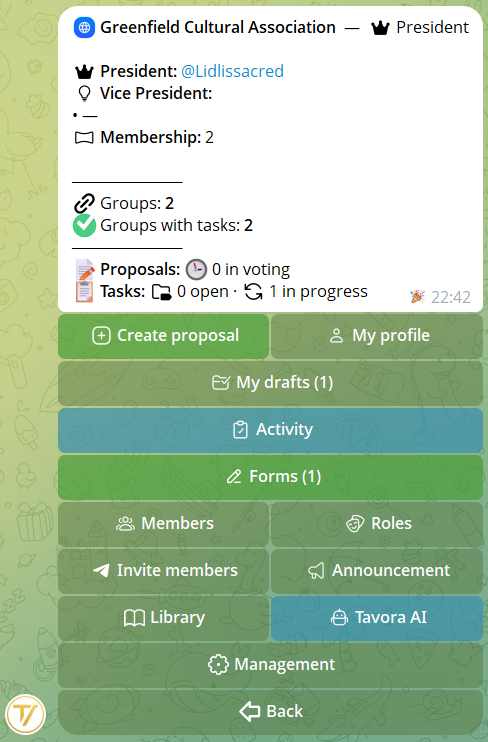
You'll find them in the community's private menu → 📋 Forms button, visible to every member. When at least one form is open the button turns green and shows how many there are, e.g. "📋 Forms (2)".
2Creating one
Forms are created by the founder and the admins. From the 📋 Forms menu → ➕ New form: give it a title, then add the questions one at a time.
For each question you choose whether it's required (it must be filled in before submitting) or optional (it can be skipped). You can group questions into sections and make the path change based on the answers.
3Question types
Each question can be a different type, and you can mix them freely within the same form:
- 🔘 Single choice — only one option among those offered
- ☑️ Multiple choice — several options selectable together
- Yes / No — a binary answer
- 🌠 1-5 scale — a numeric rating (e.g. satisfaction)
- Short text and Long text — a written answer
- Number — a numeric value
- File / attachment — the member uploads a file
From a quick, single question to a detailed sign-up form: pick the types you need.
4Organising into sections
When there are a lot of questions, group them into thematic sections — for example "Details", "Preferences", "Feedback".
Sections help respondents find their way and keep the results tidy: they reappear as headings while filling in, in the preview and in the final summary.
Each section can have its own optional introduction: a short text the member sees when entering the section, before its questions — handy for introducing a new topic.
5Conditional logic
The form can adapt to the answers. To each option of a choice question you can attach a jump to a later question: that way everyone sees only the questions that concern them.
Example: at "Will you attend the event?" whoever answers Yes continues with "How many people are you bringing?", whoever answers No jumps straight to the closing message.
Jumps only go forward: the path always stays clear and linear.
6Who answers, anonymous, deadline
Who can answer
Decide the scope: all members of the community, or only certain roles. In the latter case a dedicated menu opens where you pick the allowed roles — answers will come only from them.
Anonymous
Turn on anonymity to get honest answers: they aren't tied to the member's name. Even when anonymous, each person can submit only one complete response — no duplicates.
Deadline
Set a deadline and the form closes on its own. You can use a quick duration with the unit letter: 30m (minutes), 3h (hours), 5d (days), 2w (weeks), 1y (years).
Maximum number of responses
Optional: set a cap and the form closes as soon as it's reached. Handy for sign-ups with limited spots.
Introduction
An optional text shown as the first page of the form, before the questions — to explain what it's about, give instructions or context. The member reads it and taps ✍️ Start to begin.
Thank-you message
A text shown to whoever completes the form — to thank them or give the next instructions.
7How to answer
For members it's simple: they open 📋 Forms, pick an 🟢 Open one and answer question by question, in just a few taps.
If the form has an introduction, it's the first thing they see: they read it and tap ✍️ Start to move on to the questions.
Before the final submission you can go back and review or correct the answers already given. Optional questions can be skipped; required ones must be filled in before submitting.
8Results and PDF
From the form's card the founder and admins see the aggregated results, already calculated: percentages and bars for choice questions, the average for scales, counts for yes/no and a list of the text answers. When there are many, the results are paginated.
Text answers can be rated one by one (Eligible, Rejected, Top, To review) and there's a ranking — handy for contests, applications or selections.
Whenever you want, you export everything to a tidy PDF, ready to archive or share.
Scored grading (quizzes, tests, applications)
In Settings you can turn on 📊 Grading: Scored: every question is worth points, every response gets an automatic total, and participants land on a 🏆 leaderboard. Perfect for quizzes, tests, and applications you need to grade.
- 🎯 Max points for each question (default 10)
- ✅ Correct answer: choice questions (single/multiple, yes/no, scale, number) grade themselves — multiple choice only awards the points with the exact set
- You grade open (text) questions by hand with ✏️ Grade by hand: enter a score from 0 up to the maximum, or «x» to remove it
You see the total for each response (e.g. «27/40») and the leaderboard by score, exportable to PDF. The leaderboard isn't available on anonymous forms.
9States and management
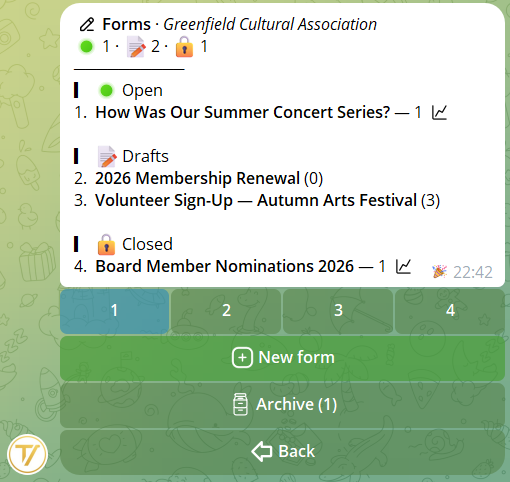
A form's states
- 📝 Draft — in preparation, not yet visible to members
- 🟢 Open — published: allowed members can answer
- 🔒 Closed — no longer accepts responses, but the results stay available
- 📦 Archived — moved to the Archive: it leaves the main list but the results stay available
Who does what
The founder and admins create the forms, publish them, read the results and close them. All allowed members answer the open ones.
10Sharing and alerts
When a form is 🟢 Open, from its card the 🔗 Share button offers three ways to get it to the right people:
- 🔗 Link — a link to paste wherever you want (chats, bio, other groups). Whoever opens it is guided to fill it in privately with the bot; the restrictions (roles, deadline) always stay active
- 📢 Send to groups — posts a card with a "Reply" button in the linked groups you choose
- 🔔 Alert who can answer — a private message to every member entitled to respond
Sends to members and groups run in the background, with a progress bar: they don't block the bot and respect Telegram's limits.
You can also customize the message you send — different for groups and for private notifications: write your own text, or attach a photo, a video or a file with a caption. Tavora always adds the «Reply» button below the message; and if you prefer, you keep the default one.
11Archive and duplicate
Archive
A closed form can be 📦 archived: it leaves the main list and goes into the Archive, where its results stay available. You never lose the data of old forms and keep the list of active ones tidy.
In the Archive you search by title, filter by date and flip through the pages — you'll find even a two-year-old form in a snap. The date filter has quick presets (last week, month, 3 months, year) and a 🗓 custom date: type a year, a month, or a from–to range.
Duplicate
From a closed or archived form, 📋 Duplicate creates a new editable draft with the title, settings and questions ready (without the old answers). Perfect for what recurs: the monthly feedback round, each year's applications, every event's sign-up form.