
1Task menu
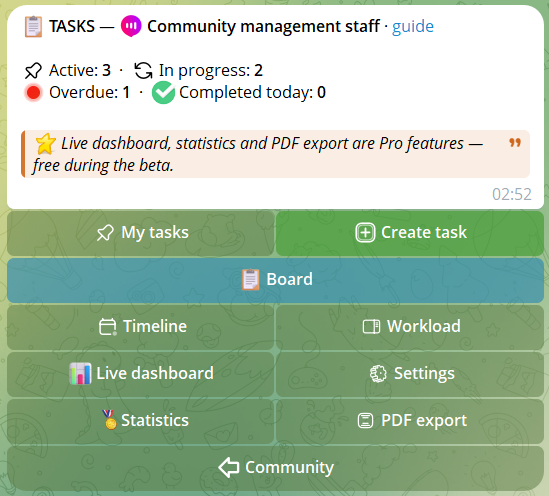
From the community menu, press Tasks to access the module. The main screen shows live stats:
- Active, in progress, overdue, completed today tasks
And the quick buttons:
- My tasks — tasks assigned to you
- Create task — creation wizard
- Board — view all tasks with filters
- Timeline — tasks ordered by due date in 14-day windows
- Workload — member workload (task managers only)
- Live dashboard — summary panel updated every 2 min
- Settings — feed, notifications, escalation
- Statistics — your stats, ranking, organization index
- PDF export — export task reports
2Create a task
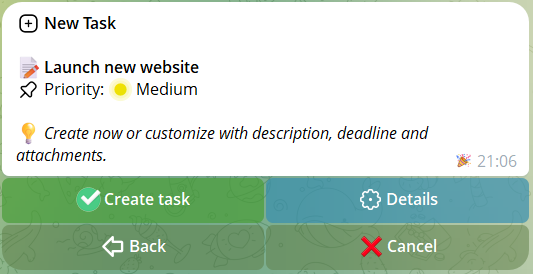
Press Create task and write the title (max 300 chars). Right after you have two paths:
- Create task — create immediately with medium priority and no due date
- Details — customize with description (max 2000 chars), priority, due date, attachments
Priority: High (🔴), Medium (🟡), Low (🟢).
Due date: choose from quick presets (tomorrow, in 3 days, in 1 week) or write a date in DD/MM/YYYY or DD/MM/YYYY HH:MM format.
💡 "⬅️ Back" button in every wizard step: if you make a mistake at any step (title, description, priority, due date, attachments) you can go back without losing the data already entered.
3The task card
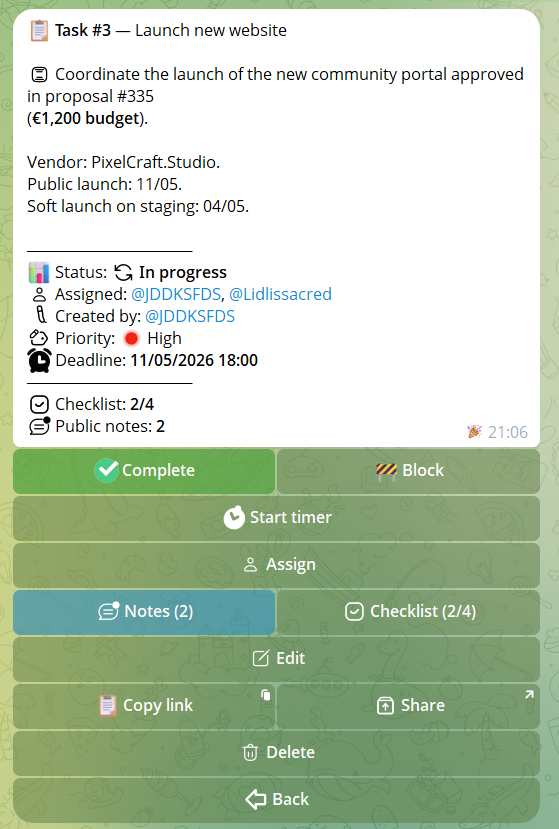
Each task is represented by a card showing:
- Title and ID (e.g.
#42) - Description (first 1000 chars)
- Status: 📭 Open, ▶️ In progress, 🚧 Blocked (with reason in compact lists), ✅ Completed
- Priority with color
- Due date (with ⚠️ if overdue)
- Multi-assignees — all listed in the card. Compact views (board, mytasks) max 2 +
+Ncounter - Checklist progress (e.g. 3/5) — visible both in text and on the button
- Public notes counter 💬 (N) — shows how many public notes there are (private ones remain visible only to the author)
- Number of attachments
Buttons change based on status and permissions:
- Open, no assignee — Claim (requires "Create task" or "Manage tasks" permission, plus founder/admin)
- Open, with assignee — Complete, Block
- In progress — Complete, Block, Stopwatch
- Blocked — Complete, Unblock
- Completed — no status action
Always visible (if you have permissions):
- Notes — add or read notes
- Checklist — manage the checklist
- Edit — change title, description, priority, due date
- Attachments — view attachments
- Assign — assign to other members
- Delete — delete task (creator or managers only)
4Board
The board shows all community tasks grouped by status: 📭 Open, ▶️ In progress, 🚧 Blocked, ✅ Completed.
Filters: by status (all active / open only / in progress only) and by priority (all / high / medium / low).
8 tasks per page in private. Press a task ID to open the card.
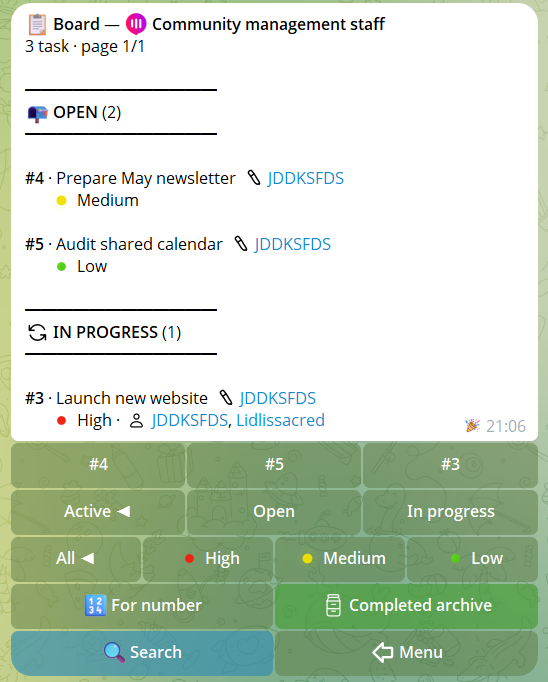
Visible block reason: tasks in 🚧 Blocked status show the reason directly in the line (truncated at 100 chars if very long, open the card for the full text).
5Timeline
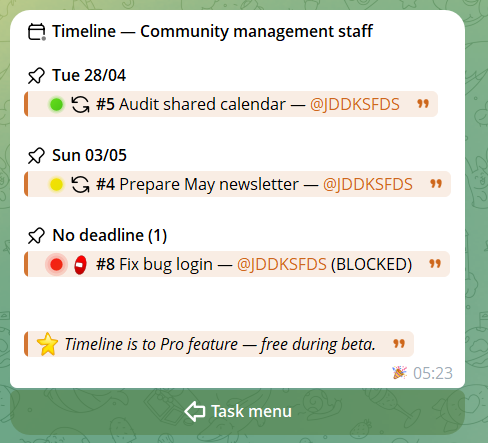
Time view of community tasks, ordered by due date. Available both in private and in groups (with the /timeline command).
- Pagination: 14 days per page, navigate with
◀ Prev / Next ▶ - Clean layout: each day has a header outside the quote, and the day's tasks (with assignee and BLOCKED badge if relevant) are gathered in a blockquote below
- "No deadline" section: tasks without a due date appear at the end with their own header
- Spacing between sections: an empty line separates each day and the no-deadline section for readability
In private, access Timeline from the Tasks menu. Only those who can create tasks can see it.
6Workload
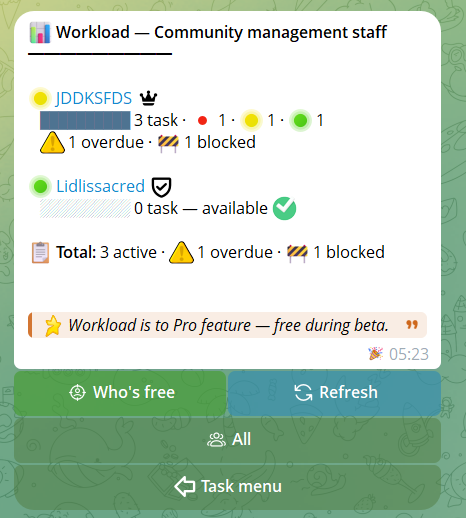
Workload panel for community members. Only for those with the "Manage tasks" permission (founder, admin or roles with manage_tasks).
For each member it shows:
- Absolute traffic light — 🟢 0–2 tasks · 🟡 3–5 · 🔴 6+ (effective load, not relative)
- Visual bar proportional to community max
- Priority breakdown — how many 🔴 high, 🟡 medium, 🟢 low
- Alerts ⚠️ overdue tasks · 🚧 blocked
- Role badge 👑 founder · 🛡 admin · custom
Interactive buttons:
- 🎯 Who's free (green) — switch filter: shows only members with 0 active tasks. Click again to return to full view.
- 🔄 Refresh (blue) — re-fetch with current filters
- Cyclic role filter — switches through All → Founder → Admin → Member → community custom roles. Shows only roles actually present among members.
Pagination: 15 members per page with ◀ Prev / N/M / Next ▶ buttons. The footer totals always refer to the entire filtered community, not just the visible page, to always give the full picture.
7Live dashboard
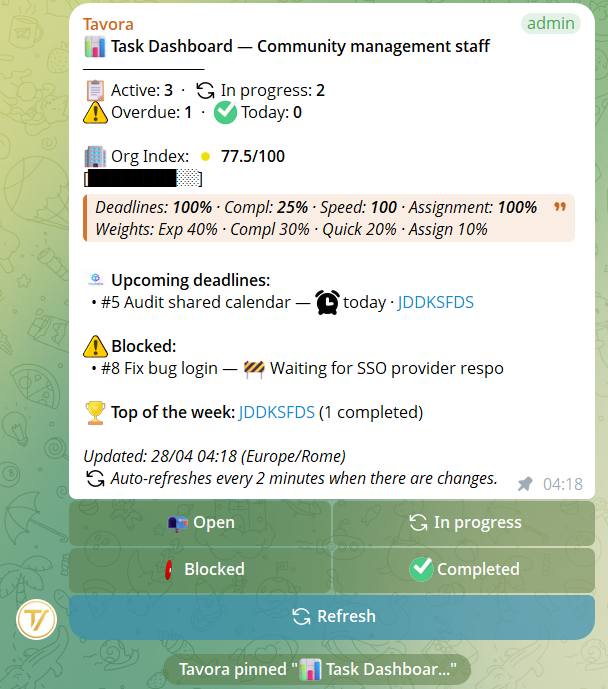
The dashboard is a summary panel that auto-refreshes every 2 minutes. Shows:
- Task counts: active, in progress, overdue, completed today
- Organization index (0-100 score) with visual bar
- Upcoming due dates: the next 3 tasks coming due
- Blocked tasks: the first 3 blocked tasks with the block reason
- Top of the week: who completed the most tasks
You can send the dashboard to a group and pin it: it auto-updates every 2 minutes, giving leadership constant supervision without manual searching.
8Checklist
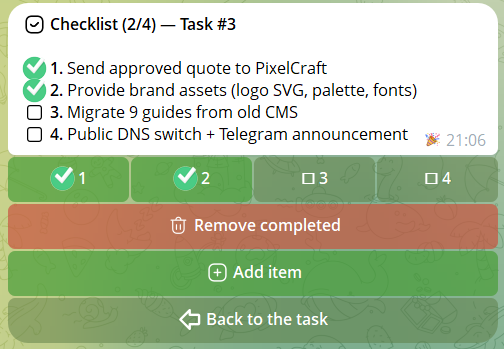
Each task can have a checklist with up to 30 items, each up to 500 chars.
- Add item: write one or more items, one per line (Shift+Enter for newline). Commas in the text are NOT separators — a sentence like "Send invoice, then ship" stays a single item.
- Switch: press an item to mark it completed/uncompleted
- Check/Uncheck all: quick buttons to check everything or nothing
- Delete item: open the item detail and press Delete
Checklist progress (e.g. 4/6) is visible both in the card text and on the "Checklist (4/6)" button.
9Notes
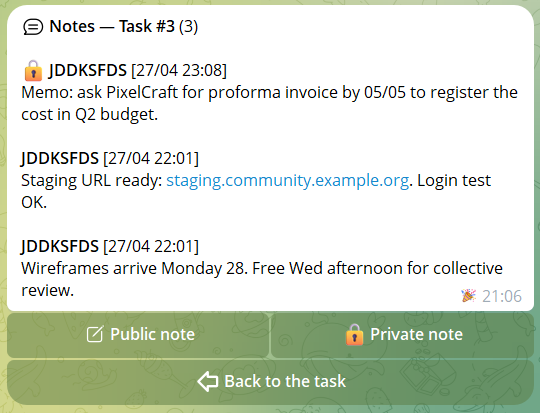
Each task can have up to 50 notes, each up to 2000 chars. Two types:
- Public note — visible to all members with access to the task
- Private note 🔒 — visible only to whoever wrote it, no one else (not even managers or assignees)
Notes are paginated (5 per page) and show author, date and type. Telegram formatting is supported.
10Stopwatch
When a task is "In progress", you can start a stopwatch to track effective working time:
- Start stopwatch — start counting
- See time — show the time accumulated so far
- Stop — stop the count
The total accumulated time is visible in the task card. Useful for retrospectives and completion-speed statistics.

11Statistics
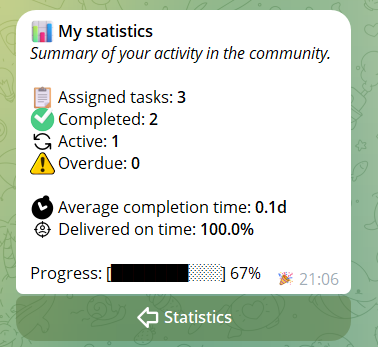
From the Statistics menu you access three views:
- My stats: assigned, completed, active, overdue tasks, average completion time, on-time delivery rate
- Weekly ranking: member ranking by tasks completed in the last 7 days. 🥇🥈🥉 for the top three
- Organization index: 0-100 score with weights: 40% on-time delivery, 30% completed tasks, 20% completion speed, 10% tasks with assignee
12PDF export
If you have the Data export permission, you can export tasks as PDF. Choose the export type:
- Active tasks
- Completed tasks
- Full report
Select an ID range (max 20 tasks per export). The PDF includes full details of each task and an RSA SHA-256 digital signature to guarantee integrity and authenticity.
Real sample
Here's a full ZIP export the bot produces for tasks. Download it to see the PDF, the report structure and the RSA digital signature.
13Task settings
From the Settings menu (accessible to those with the Manage tasks permission) you control everything related to notifications, group feed and automatic alerts.
📢 Personal notifications (private DM)
Controls what the bot writes to you privately about your tasks. Three rotating modes:
- 📰 Digest — one message a day at 8:00 community local time with the summary (see below)
- ⚡ Immediate — a DM for every event on your tasks: new assignment, completion, block/unblock, due-date change, note added, escalation
- 🔇 Off — no automatic DMs. You see updates only by opening the bot manually
📡 Feed in groups
Decides what the bot auto-publishes in groups linked to the community. Three modes:
- 📌 Important — only major events: task creation, completion, block with reason, deletion
- 📢 All — every update lands in the group (description changes, priority, due date, notes, checklist)
- 🔇 Off — the bot posts nothing automatically in groups. Task cards are only seen by requesting them with
/board,/task,/timeline
🚨 Due-date alerts (escalation)
Community-level on/off switch. When on, the bot sends progressive alerts on overdue tasks:
- Task overdue by 24 hours → notice published in the linked group
- Task overdue by 3 days → DM to community task managers with the list of overdue tasks
When off, no automatic alerts: overdue tasks are visible only by opening /board or /workload.
📅 What the daily digest contains
If you have Digest notifications, every morning at 8:00 community local time you get a summary (max 5 items per category):
- 📥 New tasks assigned to you since the last digest
- ✅ Tasks you completed the previous day
- ⚠️ Tasks due today
- 🔥 Tasks already overdue
- 📅 The next 3 upcoming due dates
If there are no updates in any category, the digest is not sent (no spam on quiet days).
⏰ Personal per-task reminders
Beyond system notifications, on each individual task you can set personal reminders. Open the task card → ⏰ Reminder button → choose:
- 1 day before the due date
- At the exact due time
- 24h after the due date (personal escalation)
- Custom — date and time of your choice
Reminders are personal: only you receive them. They are auto-deleted if the task is removed or its due date is cleared.