
1What they are
You'll find them in the community's private menu → 📅 Events button. From here you create events, see who has replied and find past ones. There's also the group command /events: inside a linked group, every member can see the agenda of upcoming events they're allowed to join.
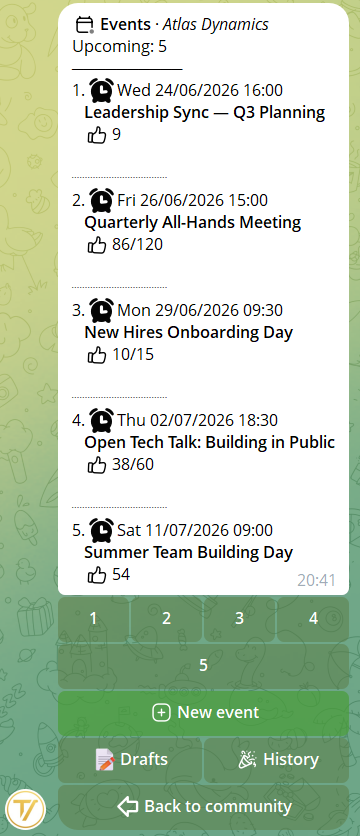
2Creating an event
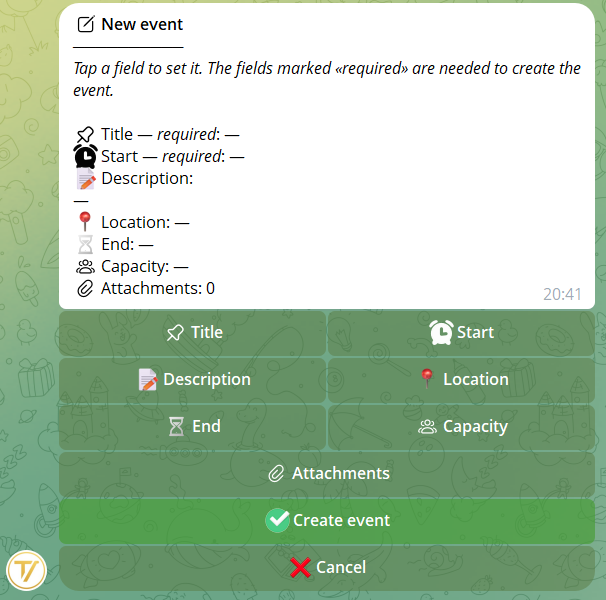
Events are created by the founder and anyone with the "manage events" permission (which you can grant to whichever roles you like). From the 📅 Events menu → ➕ New event a card opens where you fill in the fields in any order, with the summary always in view.
What you can add
- Title and date and time — the only two required fields
- Description — what it's about, the agenda, what to bring
- Location — the address, the room or the video-call link
- Capacity — a maximum number of spots (optional)
- Attachments — a photo, a flyer, a program, any file
- 🌍 Open to anyone, even non-members — by turning on the open-registration link on a whole-community event: whoever opens it joins the community and can reply right away
Times follow the community's time zone, so everyone sees the event at the right hour. Until you publish it, the event stays a draft you can edit at your leisure; when it's ready, one tap publishes it. You can keep up to 20 drafts, and each event can have up to 5 attachments.
3Choosing the audience
Before publishing you decide who can see the event and reply: the whole community, or only certain roles.
- The whole community — the event is open to every member
- Only certain roles — pick the allowed roles (e.g. only the board, only the volunteers): only they see it and reply
That way the general assembly reaches everyone, while the board meeting stays restricted to its members. The choice applies wherever you publish the event: those who aren't allowed don't see it and can't reply.
4Announcing and sharing
Once it's published, you get the event to the right people in two ways, even both at once:
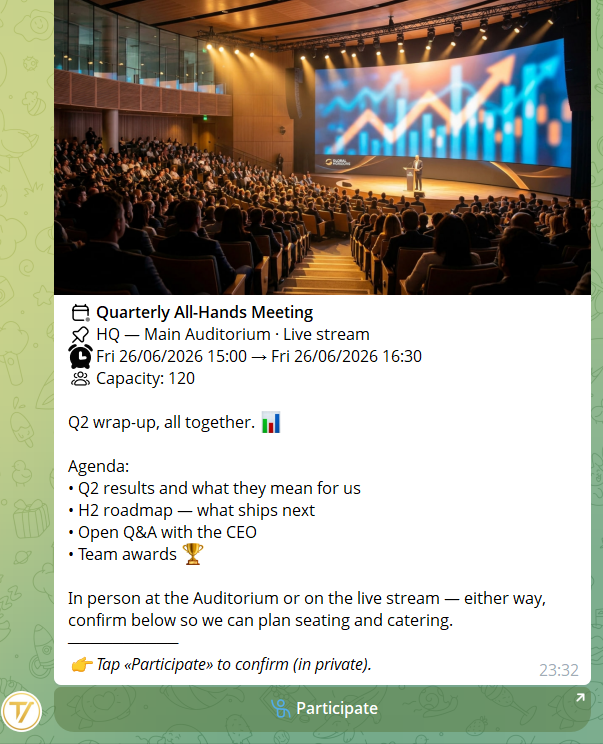
- 📢 Send to groups — your linked groups get a clean announcement with the title, date and place, and a single 🙋 Participate button. There's no voting and no numbers in the group: people tap "Respond" and confirm in private
- 🔔 Notify eligible (DM) — a private message to every allowed member, from which they can reply right away, so no one misses it
The group stays tidy — an announcement, not a discussion.
An event open to the whole community can also have an open-registration link: whoever opens it automatically joins this community, with no approval, and can reply right away. It's a simple way to grow your groups by sharing the event outside. The link can be revoked whenever you like, and it only lets people into this community — no access to anything else.
5How people reply
For those who receive the event, replying is instant. From the announcement in the group they just tap 🙋 Participate: the private chat with the bot opens, where they confirm with a single tap. Whoever gets the private alert replies right there. The reply is personal and isn't shown in the group.
- ✅ I’m in
- 🤔 Maybe
- ❌ Not coming
The reply can be changed any time, by tapping a different button. It can also be cancelled: whoever changes their mind taps the same reply again to withdraw, freeing up their spot.
6Capacity and waitlist
If the event has a maximum number of spots, Tavora counts them for you. While there are free spots, whoever replies "I’m in" joins the participants.
When the spots run out, new sign-ups automatically go to the waitlist, in the order they arrived. If someone withdraws, the first in line moves up to the participants and gets an alert right away. No manual juggling: spots free up and get reassigned on their own.
7Reminders and check-in
Automatic reminders
Whoever replied "I’m in" or "Maybe" gets automatic reminders in private as the date gets closer — so you don't have to remind everyone by hand.
Attendance check-in
On the day of the event you can do the check-in: from the list of those who confirmed, you tick off who's actually present, one tap per person. You watch the headcount of attendees update as you tick — handy for assemblies, courses and get-togethers where you need to know who's really there.
8Recurrence, calendar and your events
Recurring events
The monthly meeting or the Thursday training session doesn't need to be recreated by hand: in the event's card you'll find the "Recurrence" field — Weekly, Every 2 weeks or Monthly. When the event starts, Tavora creates the next occurrence on its own.
- Same setup — audience, capacity, attachments: everything like the original
- Replies reset and fresh reminders — everyone confirms again for the new date
- Private confirmation — the creator gets a message as soon as the new occurrence is born
- Local time stays put — even across the clock change, the appointment keeps the same hour
To stop the series, just remove the recurrence: the events already created stay, but no new ones appear.
Add to Google Calendar
On the event's card in private and in the reminders there's the 📅 Google Calendar button: one tap and the event is pre-filled in your personal calendar — title, date, place and description already in place.
My events
In the 👤 My profile menu you'll find 🎟 My events: the paginated list of every event you've replied to or attended, across all your communities, each with its status (going, maybe, waitlisted, checked in, took part). One tap on an event and its card reopens.
9Cancelling or back to draft
If something changes, you always stay in control of the event, even after publishing it.
Cancelling an event
With 🚫 Cancel event the event disappears from the agenda and the groups, and the reminders stop. The replies and check-ins already gathered are kept: you lose nothing, and you can still see who had confirmed.
Back to draft
A cancelled event can be put back to a draft with ♻️ Move back to draft: it becomes editable again and ready to republish, perhaps with a new date. Handy when a meeting is postponed rather than dropped entirely.
10Who replied and history
Who replied
The sign-up count is yours to see, from the event's card in the private menu and in the management panel: how many are coming, how many maybe, how many aren't, and who's on the waitlist, always up to date. You can also open the full list of names, filtered by reply type — handy for arranging the space or for getting in touch.
History of past events
Past events don't disappear: they go into the 📜 History, where everything stays available — you can search by title and filter by date or status. From there you can also 📑 duplicate an old event to create a new one that's already set up — perfect for what recurs, like the monthly meeting or the annual assembly.