
1Member list
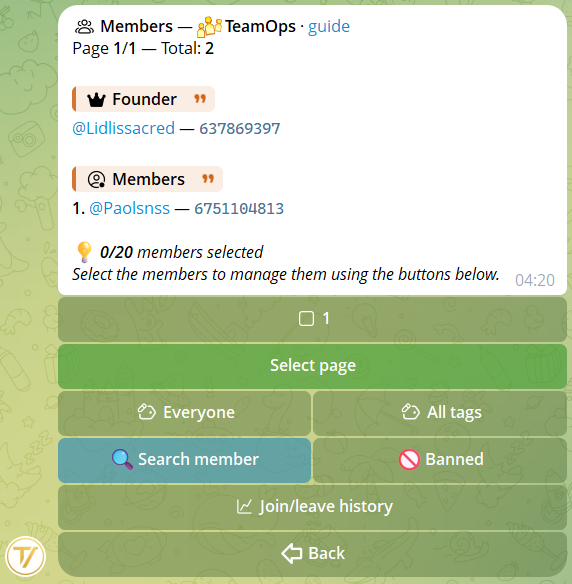
From the community main menu → Members you see the paginated list of all members with role badges, role filter, tag filter and fuzzy search by @username, name or ID.
Selection and quick actions
Tap a member's number to put them in selection (the box becomes ✅). A 📋 View (N) button appears on top:
- 1 member selected → opens their full profile.
- 2+ members selected → opens the bulk view: one confirmation and the action (note, sanction, recognition, tag, invite to groups, kick, ban) is applied to everyone at once.
Bulk actions work on tens or hundreds of members at once, with automatic throttling to respect Telegram rate limits. No bot freezes, no half-finished operations.
Filters: role + tag
Above the list, two buttons: role and tag. One tap opens the list of options — pick the one you want and the filter is set (there's a "no role" option too). The two filters combine: "admin" + tag "VIP" shows only the admins with that tag.
Filter by group
You can also filter by group: who has been seen in a given group — or who has never set foot in it. It combines with search, role and tag: handy for spotting who's missing from an important group.
Export CSV
At the bottom of the list, anyone who manages members finds 📤 Export CSV: it downloads the complete member list — name, username, base role, custom roles and join date — ready to open in Excel or Google Sheets.
2Member profile
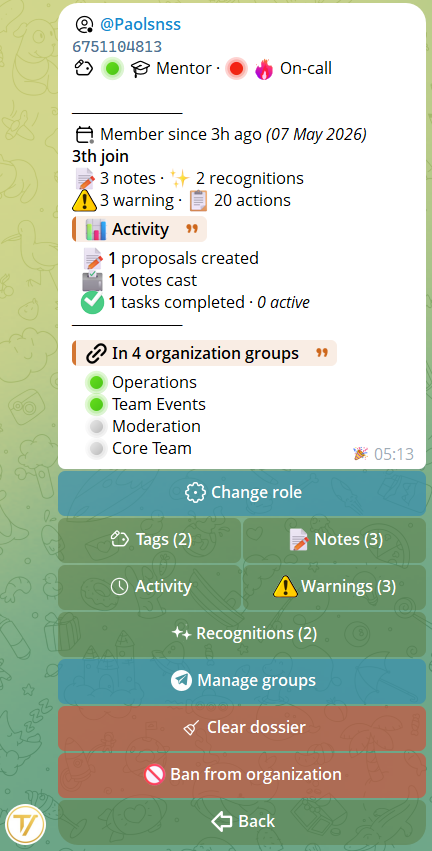
When you have a single member selected and tap View, their profile hub opens: full identity, join date, groups in the community, plus a compact 📊 activity block: proposals created, votes cast, events attended (with attendance recorded at check-in), forms filled in, and how long they've been a member. Every number refers to this community only.
From there you reach 7 dedicated sub-screens:
- 📝 Internal notes — staff memos with attachments (photos, videos, documents). Editable by the author, deletable per hierarchy, pin to keep the most important on top. "Mine only" filter to see what you've written.
- 🌟 Recognitions — a way to celebrate whoever deserves it. See the dedicated section.
- 🏷 Tags — colored labels (7 colors + none) with optional emoji (premium too). Up to 20 tags per community, assignable to anyone.
- 📜 Activity — timeline of everything the member did: proposals created, votes cast, tasks assigned, role changes. Filters by date (24h / 7d / 30d / custom) and by type.
- 📋 Their tasks — paginated list of the member's tasks in this community, completed and in progress, with dates and on-time delivery (co-assignments included).
- ⚠️ Sanctions — see below, dedicated section.
- 📦 Group management — see next section.
Two direct action buttons on the profile: Change role (modify the member's role) and Ban from organization (definitive removal with optional reason and DM to the member). Two variants: organization only (stays in linked Telegram groups), or organization + groups (kicked from chats too).
3Group management
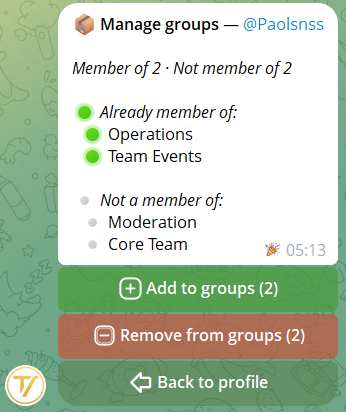
From the profile → Manage groups you open a hub with two clear choices:
- ➕ Add to groups — sub-panel with multi-select of invitable groups only
- ➖ Remove from groups — sub-panel with multi-select of groups the member is in
"Add to groups" sub-panel
In the text you see all community groups split by status: 🟢 Already member, 🎟 Invite already pending, 🚫 Banned from group, 🔒 Bot lacks permissions. Buttons below show only groups where the invite is actually possible — no confusion about what you can and can't do.
Pick as many as you want (checkboxes), then ✉️ Send invites (N) generates single-use links and delivers them to the member by DM. Race-check: before accepting a switch, the bot re-verifies the status — if the member joined/left the group meanwhile, you get a toast and the panel refreshes.
"Remove from groups" sub-panel
Symmetric: the text shows groups they're not a member of (informative), buttons show only groups where they're actually in. Select and 🚪 Kick from selected (N) launches the operation.
Kick: what actually happens
Tavora uses soft-kick: ban + immediate unban. The user loses access to the group but can return if you send them a new invite. No permanent Telegram User ID blacklist.
Multi-group kicks run in background with throttling (~0.5s between groups) to respect Telegram rate limits. You get immediate feedback ("Kick started from N groups"), the bot keeps responding to everyone else while the effect propagates gradually. Status re-fetch before each kick: if the member already left a group, the skip is logged in the audit with result already_left.
4Sanctions and auto-ban
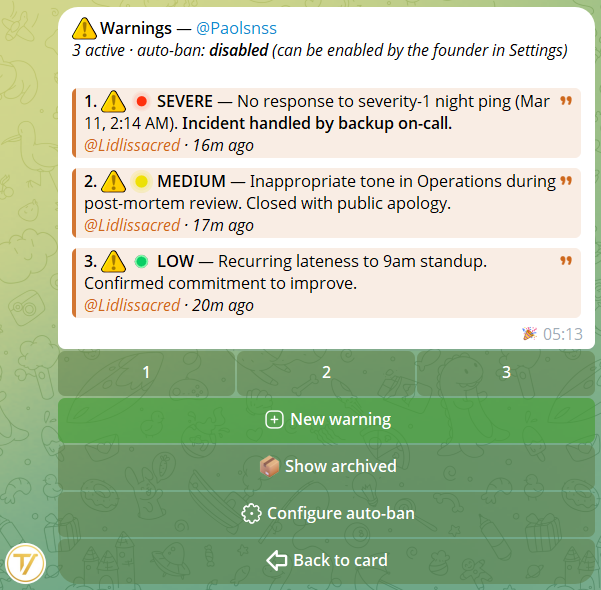
From the profile → Sanctions you open the member's sanction list (active + archived). From here you create a new sanction with reason (max 1000 chars, formatting and premium emoji supported).
When you save, the bot sends a DM to the member with the full reason. If they blocked the bot or never did /start, you get an info toast: the sanction is saved anyway.
Auto-ban threshold
From community Settings, the founder can configure an auto-ban threshold: when a member accumulates N active sanctions, they get banned automatically. Quick values (2, 3, 5, 10) or custom. Can be disabled at any time.
The member can see their own active sanctions from the community home → My profile → My sanctions. They see only reason, author and date — not the staff's internal notes.
5Recognitions
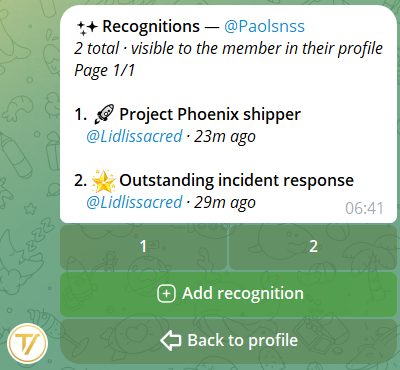
Recognitions are the flip side of sanctions: a way to give a public credit to whoever puts in the work for the organization.
How to write one
From the profile → 🌟 Recognitions open the prompt and send a message with the recognition text. Bold, italic and premium emoji are supported.
What the member sees
The bot sends the member a direct message in private with title, body and organization name, plus a View on my profile button to open the list of received recognitions. The recognition stays visible on the member's profile to anyone who opens it.
6Clean dossier
Clean dossier deletes in one shot all notes, sanctions, tags, pending invites and recognitions of the member. Useful when a person starts over.
What is NOT deleted
- 📜 Activity log — the cleanup action itself is logged, with the count of everything deleted.
- 🚪 Join/leave history — entry, exit and ban events of the organization remain.
- 👤 Member identity — the person stays in the organization with their role. Only the "disciplinary dossier" is wiped.
Before applying, you see a preview with counters: "will be deleted: 12 notes, 3 sanctions, 5 tags, 2 invites". Only after explicit confirmation does the action run.
7Organization stats
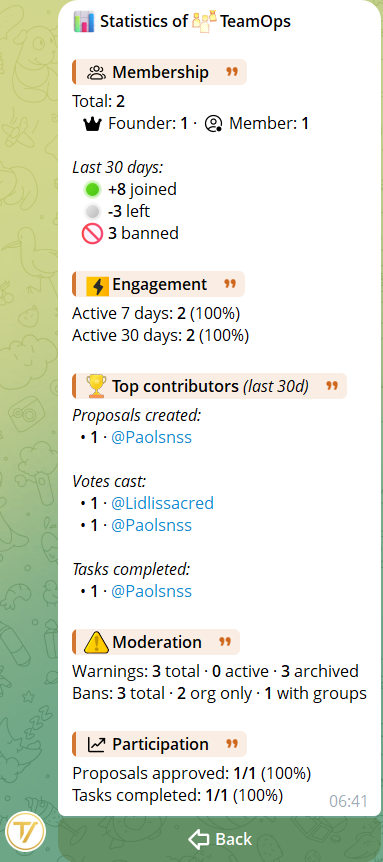
From the Management menu → 📊 Stats open the aggregated panel of the organization. A snapshot of overall health. Visible only to founder and admin.
The 5 sections of the panel
- 👥 Membership — total members, breakdown by role, joins/leaves/bans in the last 30 days.
- ⚡ Engagement — how many distinct people did something in the last 7 and 30 days.
- 🏆 Top contributors — who created the most proposals, cast the most votes, completed the most tasks in the last 30 days.
- ⚠️ Moderation — total/active/archived sanctions, manual and auto-bans triggered by the threshold.
- 📈 Participation — percentage of approved proposals and completed tasks.
8Join/leave history
From the Member list → 📋 Join/leave history open the complete log of joins, leaves and bans (manual, automatic and legacy) that occurred since the organization exists. A single chronological view, distinct from the per-member log.
Filters
- Event type: All, 🟢 Joins, 🚪 Leaves, 👢 Kicked, 🚫 Banned, ⚙️ Auto-ban.
- Period: always, 24 hours, 7 days, 30 days, or custom range (interpreted in your time zone).
What you see for each event
- Date and time.
- Member involved, with direct link to their Telegram profile.
- Who performed the action ("system" for auto-bans and spontaneous joins).
- Optional reason.
- Ban scope (organization only, or organization + groups).
9Adding members
Two ways to bring new people into the organization.
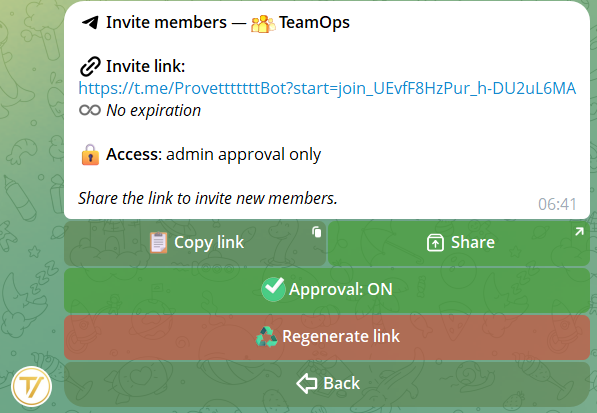
- Invite link — from the main menu → Invite. Share it wherever you want: whoever opens it joins (or ends up in the approval queue, if active).
- Command
/add @user1 @user2— from a connected group (with the bot as admin): instantly adds to the organization the members already in that group, even several at once.
Invites via link end up in the "Pending invites" panel of the member profile: if they aren't used within 24 hours, the link is revoked automatically. The /add command, instead, adds right away and creates no pending invite.
10Join requests
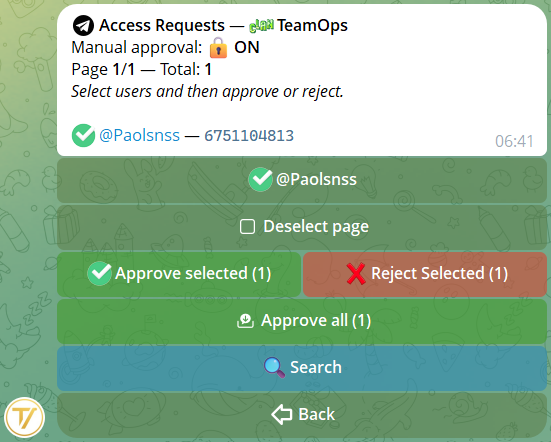
When manual approval is on (community Settings), new users who use the invite link don't join immediately but end up in a queue. From Management → Requests:
- Accept individual requests or Reject
- Accept all — a single button to clear the queue in one shot
On the Management button of the community home a 📬N green badge appears when there are pending requests, and 🎟N when there are pending group invites not yet used. Push reminders every 2 hours if the queue stays full — silenceable from Settings.
11Transfer ownership
To hand the community to another member: Management → Settings → Transfer ownership. Enter the recipient's numeric ID (they can get it via the /myid command).
The recipient must accept the transfer from the bot before ownership changes. You stay Founder until they accept. If they decline, the request expires after a few days.
12Member Management AI
Almost everything you've read here can also be done by talking to a staff-only AI: lists and filters, tags and roles, group invites, kicks, bans, private messages to members and announcements in the groups — in natural language, always with your confirmations.
There's a dedicated guide: Member Management AI, in the guide list.