
1Start the vote
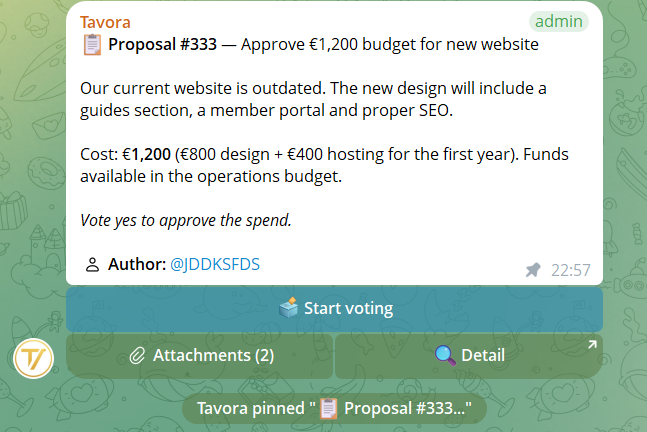
When a proposal lands in a group, a message is posted with the proposal text and a Start vote button. Only users with the Manage proposals permission can start the vote.
2Voting keyboard
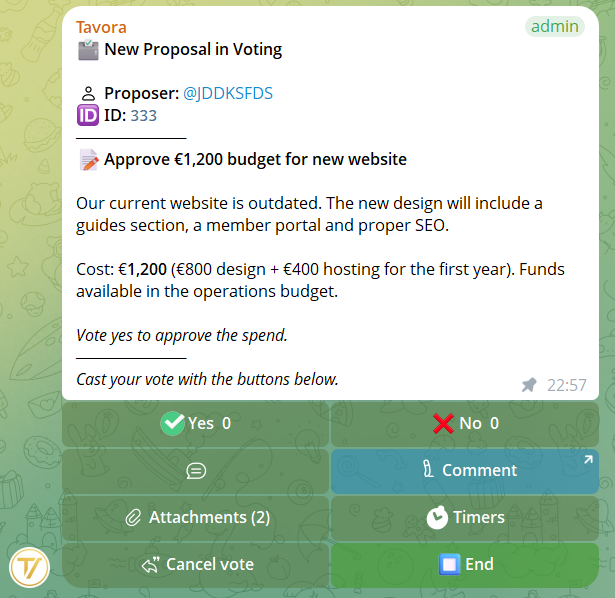
Once the vote is active, the keyboard appears below the card:
- ✅ N — Yes vote (N = live counter updated in real time)
- ❌ N — No vote (same live counter)
- 💬 — Show voter comments in the group
- ✍️ Comment — Opens the bot privately to write a comment
- 📎 Attachments — View the proposal's attachments
- ⏱ Timer — Set an auto-close timer (managers only)
- ⏹ End — Close the vote (managers only)
- ↩️ Cancel vote — Cancel without recording results
3Auto-close timer
Managers can set a timer by pressing ⏱ Timer and entering the duration in the group. Accepted formats:
30s— 30 seconds5m— 5 minutes2h— 2 hours1d— 1 day
The active timer shows the remaining time in the keyboard (e.g. ⏱ 1h 30m ✕). Press ✕ to cancel before expiry.
Ten minutes before expiry, the bot sends a reminder in the group for those who haven't voted yet.
4End a vote
Press ⏹ End. The bot asks if you want to add a manager comment to the decision:
- Write a comment — type in chat, confirm the preview, it's attached to the outcome
- No comment — close immediately without a note
After closing, the outcome message appears in the group:
- Approved — more Yes than No
- Rejected — more No than Yes
- Tie — equal numbers
5Quorum, majorities and secret ballot
When you start a vote, the ⚙️ Vote settings screen appears first. Every option is optional: a single tap on ✅ Start vote launches the classic vote. The screen also shows the 👥 Eligible voters: N row — how many members can vote — a useful reference for calibrating the quorum: majorities are always calculated on the votes cast, never on the total member count.
- 🎯 Quorum — minimum number of votes (yes + no + abstained) for the vote to be valid. If votes are missing, the outcome is quorum not reached. Default: none
- ⚖️ Majority — Simple (Yes > No), Absolute (Yes above half of the voters, abstentions included) or Qualified ⅔ (Yes ≥ ⅔ of Yes+No)
- 🟡 Abstention — adds the third 🟡 button to the voting keyboard (the buttons show only the emojis: ✅ ❌ 🟡); abstainers appear in the counts and count towards the quorum
- 🕶 Secret ballot — while the vote is open, the card shows only Voters: N, never individual choices; the aggregate breakdown appears only at closing
- 📊 Votes (CSV) — once the vote is closed, from the proposal detail anyone with the Export data permission downloads the votes CSV: open ballot = individual rows, secret ballot = group totals only
Non-default settings appear as a compact ⚙️ line on the voting card, in the results, in the archive and in the PDF (with an Abstained column).
6Voter comments
Every voter can comment on the proposal. Press ✍️ Comment on the voting keyboard: the bot opens in private to compose the comment (max 500 chars). Telegram formatting is supported, including animated premium emojis.
Voter comments can act as amendments: they're attached to the proposal and visible to all group members by pressing 💬 on the voting keyboard.
A new comment from the same user replaces the previous one (one vote, one current comment).
7Voting across multiple groups
The same proposal can be voted on simultaneously in multiple groups of the same community. Each group keeps separate counters.
The final outcome is calculated by summing votes from all groups:
- Total Yes vs total No, summed across all groups
- Results shown to the proposer in private with per-group breakdown
- Groups with cancelled votes do not count in the total
If voting happens first in one group and later in another, the outcome auto-updates as votes close.
8Re-vote and cancel
Anyone with the Manage proposals permission can restart a closed vote. From the proposal detail in the group (command /proposal ID):
- Re-vote in this group — cancels previous votes and reopens the voting
- The final outcome auto-updates with the new results
For an Agenda, the entire agenda can be re-voted from scratch, deleting all votes for the items.
To cancel an ongoing vote (without recording results): press ↩️ Cancel vote. The group's votes are deleted and the message returns to the initial state with Start vote.
9Vote on an Agenda
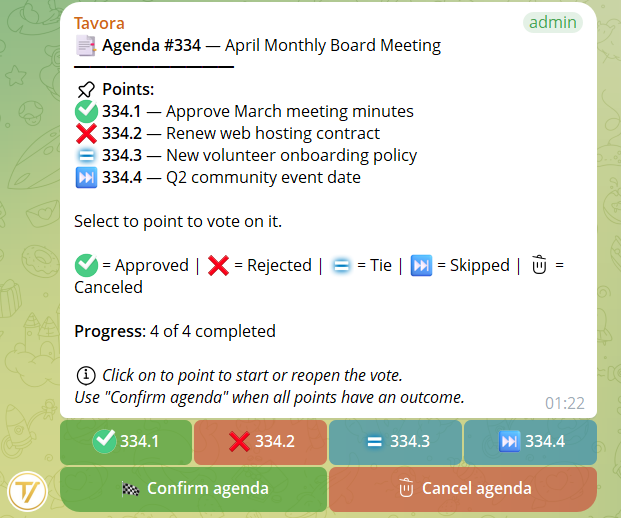
When an Agenda arrives in a group, an items menu appears. Each item is a button with a status icon:
- ✅ Approved (green)
- ❌ Rejected (red)
- 🟰 Tie
- ⏭ Skipped
- Plain number — not yet voted
The flow:
- Click on an unvoted item to start its vote
- Members vote with the standard keyboard (Yes/No)
- The manager ends the item's vote → return to the items menu
- Repeat for each item, in order or skipping as you prefer
- Already-voted items can be reopened (previous votes are deleted)
- Only one item at a time can be actively voting
- When all items have an outcome, the Confirm Agenda button appears
Confirm Agenda marks the vote complete for this group. If other groups are still voting, the final report arrives once everyone confirms.
Cancel Agenda deletes the entire agenda. If some items have already been voted on, explicit confirmation is requested.
10Commands in groups
/proposal 12— Shows proposal #12. If not yet voted: Start vote button. If in progress: link to the voting message. If completed: outcome with re-vote option/agenda 5— Shows agenda #5. Same logic as/proposalbut for agendas/detail 12— Shows full details (title, description, attachments, per-group outcomes)/detail 5.3— Shows details of item 3 of agenda #5/votes 12— Sends in private the vote summary with detailed list of voters per group (managers only)
/proposal on an Agenda, the bot suggests using /agenda and vice versa. No frustrating errors.