1What they are
The Library is where founder and admin put regulations, charters, FAQs, links. Members read them inside Telegram.
Tavora AI reads the Library and answers people who ask questions. In groups with /ask, in private chat with a button.
2Resource types
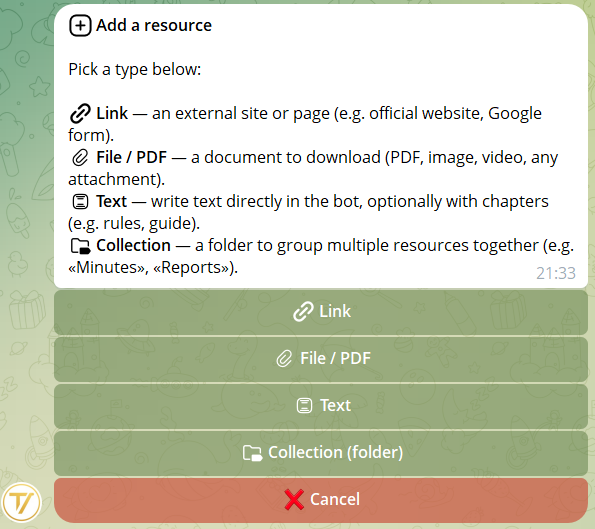
📄 Text
Write a document directly in the bot, organised into chapters and browsable pages. Perfect for regulations, charters, manuals, FAQs. You work on a draft first (see the next section), then publish it when it's ready.
📎 File
PDF, images, video, audio. Anything you can send on Telegram.
🔗 Link
A button that opens an external website.
📁 Folder
A folder that groups multiple documents on the same topic (e.g. "Assembly minutes", "HR procedures"). See the folders section.
3Drafts, pages and attachments
When you create a 📄 Text document, it starts out as a draft. Only you and the other admins can see it: members don't see it until you publish. You can experiment, revise, add attachments — the AI isn't reading it yet, so it doesn't cost a thing.
How it works
- Open Library → 📝 Drafts (button visible only to founder/admin)
- You'll find every draft in progress: up to 5 at the same time per community
- Drafts in progress don't consume AI space — experiment freely
- When a draft is ready, tap 🚀 Publish from its dashboard
Chapters and pages
A text document is made of chapters, and each chapter is made of pages.
- Up to 10 chapters per document
- Up to 12 pages per chapter
- Up to 3500 characters per page
- Chapters can include premium emoji in their title (even your own custom Telegram Premium packs)
For members it works like a book: ◀ N/M ▶ at the bottom of every page, chapter by chapter. For Tavora AI each page is a separate unit — so if someone asks "What's the penalty for being late?", the AI cites the exact page that contains that article, not the whole charter.
Attachments on pages
Every page can have up to 3 attachments: photo, video, GIF, document, voice note, audio. Useful for pairing an article with a signature, a procedure with a screenshot, a clause with a recorded podcast.
To manage them, inside the page open 📎 Manage attachments:
- You see a numbered list of everything you've already attached
- To add one: send the file in chat, it gets attached right away
- 🗑 Remove last undoes the most recent attachment
- 📎 View attachments in chat sends you the same files so you can preview them
As members flip through the page they find a 📎 View attachments button: when tapped, they receive the files in chat (with a small cooldown to prevent flooding).
Custom icon
During draft creation there's an optional step: send 1 emoji to use as the icon, or skip and 📕 stays as the default. Premium emoji from your Telegram packs work too.
You can change it any time from the draft dashboard, 🎨 Icon button.
Drafts inside folders
If you open a folder and create the draft from there, the draft inherits the folder. When you publish, the document stays inside the original folder — you don't have to remember to move it.
In the Drafts menu, under drafts born inside a folder, you'll see a small badge "→ in folder: Minutes" as a reminder.
4Folders
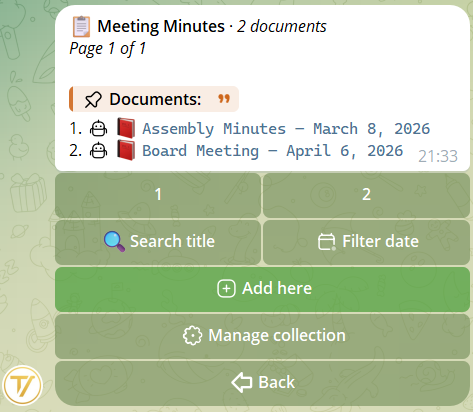
When documents grow, group them into folders. Example: all the assembly minutes in a folder called "Minutes".
Create one from the 📁 New folder button. Give it a name and an icon, then move documents into it from each one's card.
You can also start from inside the folder and create a new text draft right there: it's born inside, and stays inside even after you publish.
5Who sees what
Every document has a visibility scope that you choose during creation, as the last step of the wizard. It applies to Links, Files, Text and Folders — the Visibility step shows up for all of them.
- 🌐 Everyone — any member sees it (default)
- 🎭 By role — only people with one of the roles you pick (e.g. only Board Members, only HR). Shows up only if you've already created custom roles in the community
- 🔒 Staff only — only founder and admin, internal material
Change your mind? Visibility can always be edited later from the document's card.
The AI follows the same rules: if a member can't see a document, Tavora AI won't cite it to them.
Example: Charter visible to everyone, Board minutes only to Board Members.
6AI on or AI off
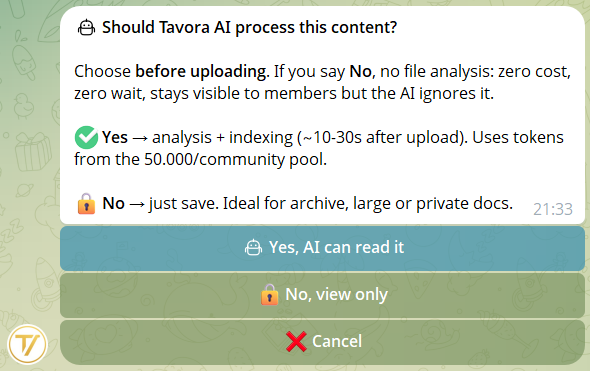
For each document you choose whether the AI can read it.
- AI on — the assistant cites it in answers
- AI off — it stays visible to members, the AI ignores it
When AI off makes sense: historical archives, heavy files, documents you want to keep browsable but out of AI answers.
You can change this choice at any time from the document's card.
7Asking Tavora AI
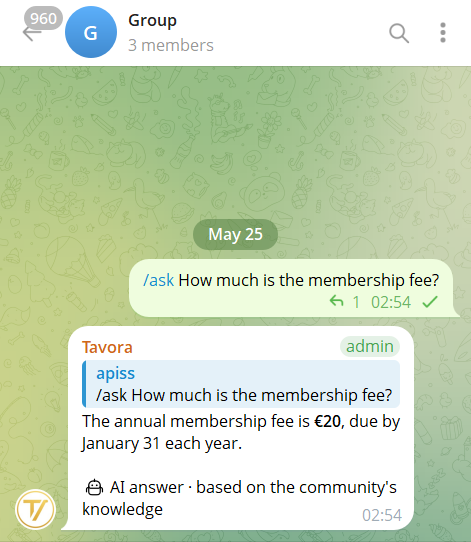
In groups
Write /ask followed by your question. The answer arrives in the group, everyone sees it. Even in groups the AI remembers your conversation: a per-user memory kept separate from the private one, holding your latest exchanges and cleaning itself up after 7 days.
In private chat with the bot
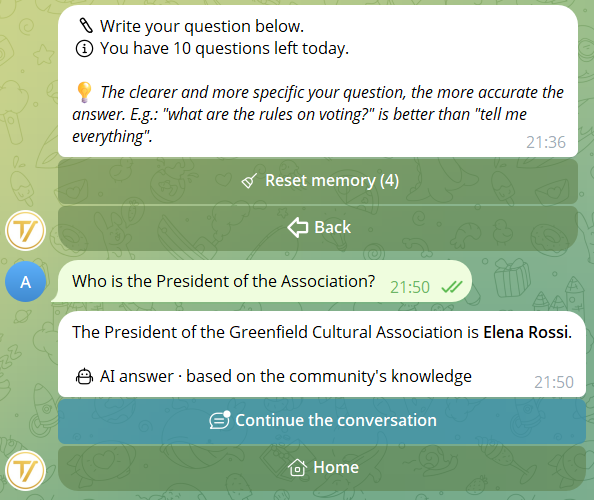
Open the community → 🤖 Tavora AI button. Write your question. The answer is just for you, and the AI remembers previous turns if you continue the conversation (see section below).
8Conversation memory
In private chat with the bot, Tavora AI remembers previous turns as long as you continue the conversation. You can ask questions that refer to the previous answer without repeating the whole context.
Example: "Who is the president?" → "When do they meet?" (the AI understands you mean the president, not the mayor).
How to continue the conversation
Under every AI answer there's a 💬 Continue the conversation button. Tap it to ask the next question while keeping the context. If instead you leave the Tavora AI menu and come back later, the memory is still there.
Reset memory
When you want to start over (topic change or privacy), tap 🧹 Reset memory under the answer. The AI forgets everything and starts fresh. The memory is also cleared automatically after 30 days of inactivity. Resetting also clears the group memory.
Separation
Memories are kept separate per person and per community: your chat with the AI in community A is not visible from community B. The Tavora AI in the /start menu also has its own memory, separate from the ones inside communities.
In groups with /ask, memory is separate: what you ask in private never resurfaces in groups, and vice versa. Group memory is personal (everyone has their own), holds your latest exchanges and expires on its own after 7 days.
9AI instructions (staff rules)
🧠 AI instructions are rules that Tavora AI follows in every answer to members. They're for behaviour, not content.
Examples of useful rules
- "Always answer concisely, max 3 sentences"
- "If they ask about payments, tell them to write to admin@example.com"
- "Don't give legal or medical advice"
- "Use a formal tone"
They're different from documents: regulations, charters and minutes go in the Library (📄 Text or 📎 File). AI instructions are only for telling the AI how to behave.
How to manage them
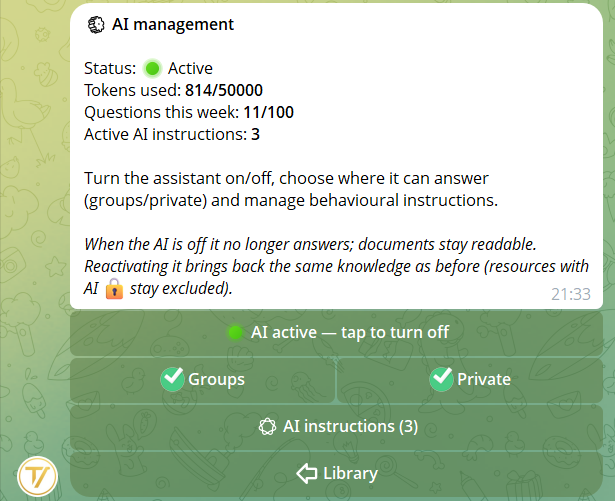
From the Library → ⚙️ AI management → 🧠 AI instructions. They're visible only to founder and admin. Each instruction is short (max 500 characters) and is written directly in the bot in 2 steps (name + text).
Automatic moderation
When you save an instruction, an automatic check kicks in within seconds. If it contains content against the usage policies (insults to members, prompt-injection, vote manipulation, etc.), Tavora AI won't follow it: you'll see a ⚠️ next to the title in the list and, when you open it, a first-person note from the AI explaining why and suggesting how to rephrase it.
10What it knows, what it doesn't
It knows
- Library documents with AI on (chapter by chapter, page by page)
- The staff's AI instructions (behavioural rules)
- Public community data: founder, member count, roles
- How Tavora works
- Your most recent conversation turns (in private chat and, separately, in groups)
It doesn't know
- What you write in groups
- The contents of drafts that haven't been published yet
- The content of uploaded Links
- The internet, other communities, photos/audio
- Other users' conversations (memories are kept separate per person)
When it doesn't have the answer
Tavora AI doesn't make things up. If the question is off-topic, or it's about a document the member can't see because of their role, it answers gently:
"I'm sorry, I don't have information on this in the community materials. Can I help you with something else about Tavora or another document?"
That way the member understands the limit is only in the materials available to them, not a bot error.
11For founder and admin
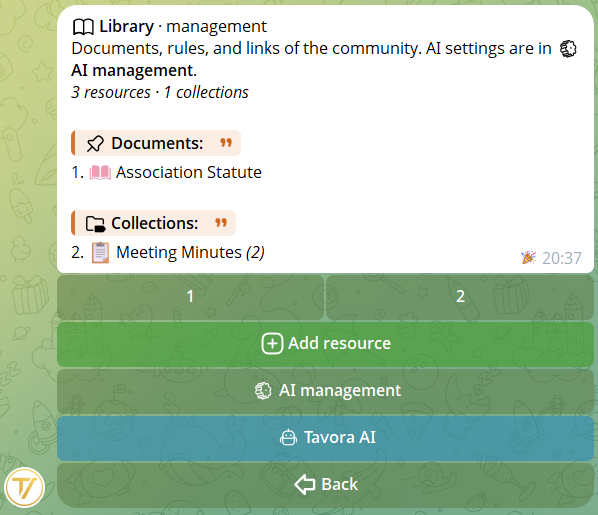
From the community home open 📚 Library. At the top you find 📌 Documents (the resources outside folders) and 📂 Folders (the folders).
At the bottom, only for founder and admin: ➕ Add, 📝 Drafts, ⚙️ AI management, 🤖 Tavora AI.
📝 Drafts
Your private "workbench". All the text drafts in progress, with a dashboard to edit chapters, pages, attachments, icon, visibility. You tap 🚀 Publish when a draft is ready.
⚙️ AI management
A single menu gathers everything: assistant status (on/off), tokens used out of the 50,000 available, questions asked this week out of the 100 available, and access to 🧠 AI instructions (behavioural rules). From here you also choose whether the AI replies in groups, in private chat, or both.
On each published document: edit, move between folders, change visibility, turn AI on or off, delete.
During the beta the limits are generous (a few dozen documents, a few folders, ~50,000 AI tokens per community, 5 simultaneous drafts). They will be raised in paid plans.